The vast majority of enterprise data is stored in relational databases, and efficient database management is essential. KNIME Analytics Platform, an open-source visual workflow platform, has built-in database support to take advantage of this. More specifically, KNIME’s Database Extension nodes enable connections to any JDBC-compliant database.
This functionality enables analysts to create end-to-end data pipelines completely within KNIME, where they can query, transform, and aggregate their data without having to export their data to another platform or download the data to their local machine. Because of this, KNIME is able to offload heavy processing to the database server (where the data is stored) instead of pulling the entire dataset to the local side. This enables faster, scalable analytics while maintaining data governance. In this blog, we will discuss the importance of database workflows and how they have been simplified using KNIME.
What is KNIME?
KNIME Analytics Platform is a free, open-source platform designed for the entire data science life cycle, including data access and blending, transformation, visualization, and model deployment. It uses a node-based workflow paradigm that consists of visual elements, with each node representing a discrete operation that users may combine together to create a data workflow / data pipeline.
Although KNIME is praised for being no-code/low-code accessible, its true power lies in its open nature, scalability, and integrative capabilities. KNIME has more than 300 connectors to connect to almost any data source and enables advanced users to inject code (Python, R, Java, or SQL) anywhere in the workflow. This makes it an integrated platform for all data workers, from business analysts to data engineers.
Connecting KNIME to Databases with Dedicated Connectors
KNIME can connect to any database that has a Java Database Connectivity (JDBC) driver. There is a dedicated pre-configured connector to all major systems, including:
Relational Databases: PostgreSQL, MySQL, Microsoft SQL Server, Oracle, etc.
Cloud Data Warehouses: Snowflake, Databricks, Google BigQuery, Amazon Redshift.
Big Data Platforms: MongoDB, Apache Hive, and Apache Impala.
Steps to Establish Database Connections
1. Check / Update your Preferences
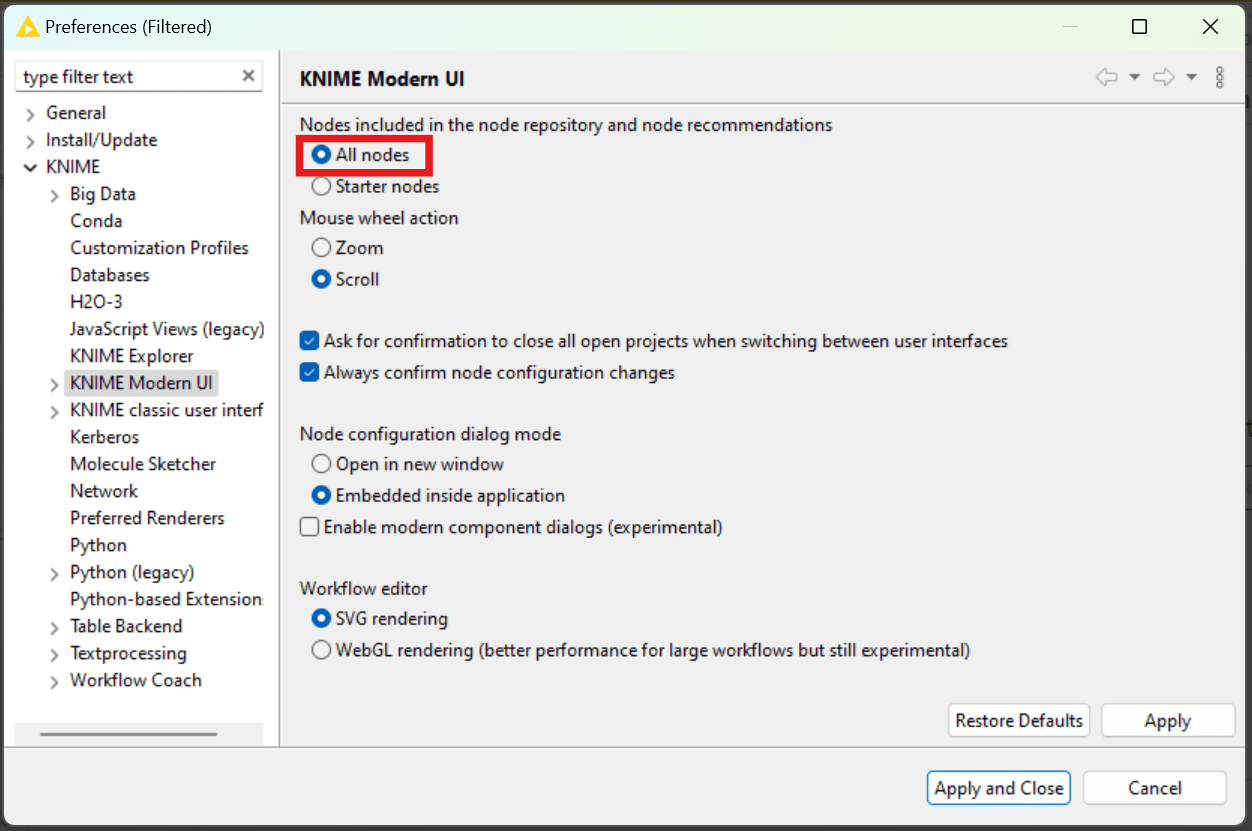
First, go to your Preferences menu and make sure to select All nodes in the KNIME Modern UI section before searching for a database node.
Note: Database nodes are considered more advanced than the “starter nodes,” so the database nodes will not appear in the search if your preferences are set to only display Starter nodes.
2. Install the KNIME Database extension
You can find the extension here.
2b. If needed, install the extension for the specific database you want to connect to
As an example, there is a KNIME Snowflake Integration extension that includes the Snowflake Connector node. Installing the specific database extension will add the dedicated database connector node to your KNIME repository.
Installing a KNIME database extension will also typically (but not always) install the necessary driver on your machine that is needed for that database. Note that we have provided direct links above to the KNIME connector nodes for some of the most commonly used databases.
After installing a new extension, you will need to restart KNIME Analytics Platform.
3. Search for the dedicated database connector node in your Node Repository
Now, in the Node Repository, search for a specific database connector node (e.g., MySQL Connector).
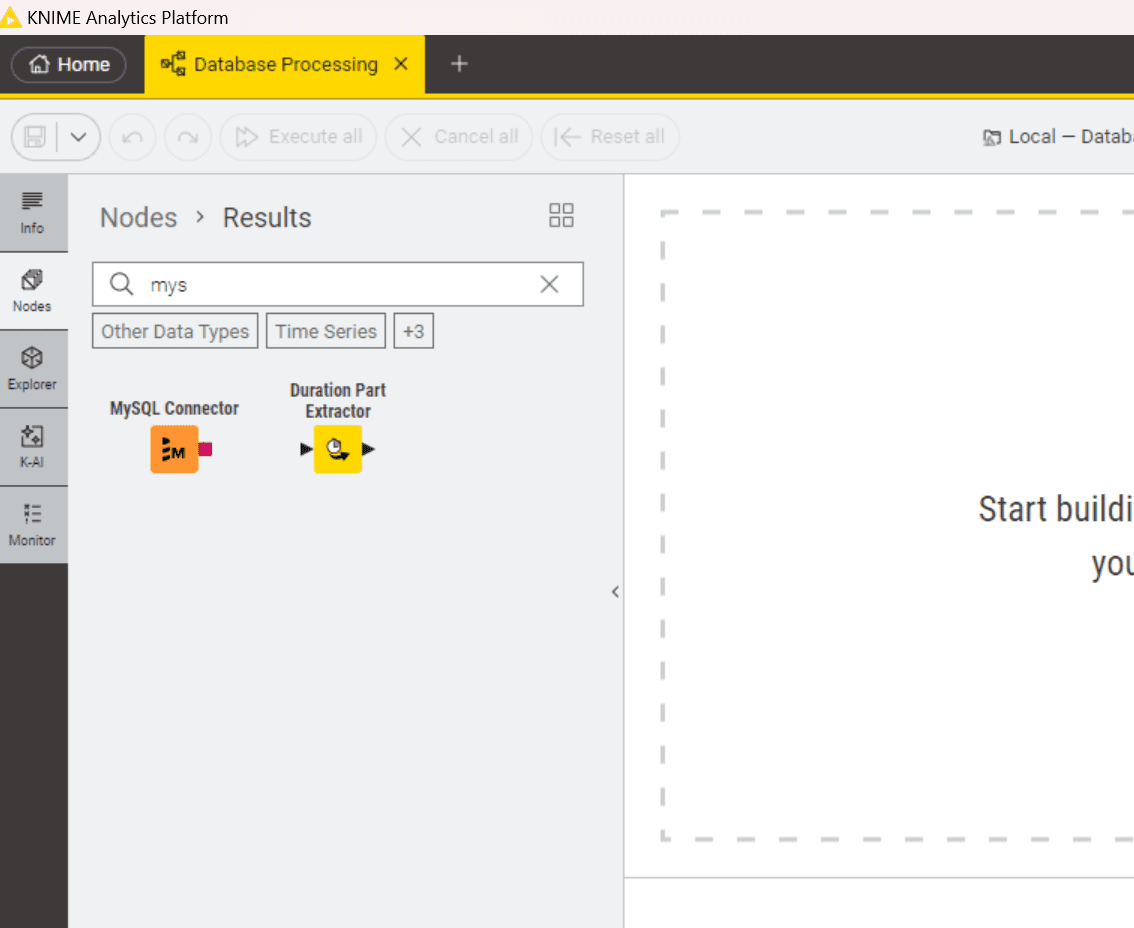
4. If the node is available in your repository, add the dedicated database connector node to the canvas and configure the node
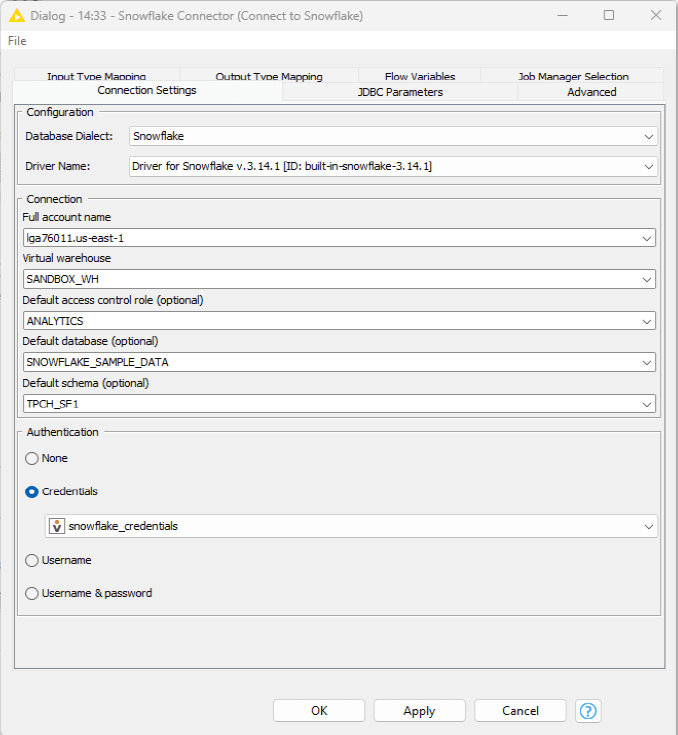
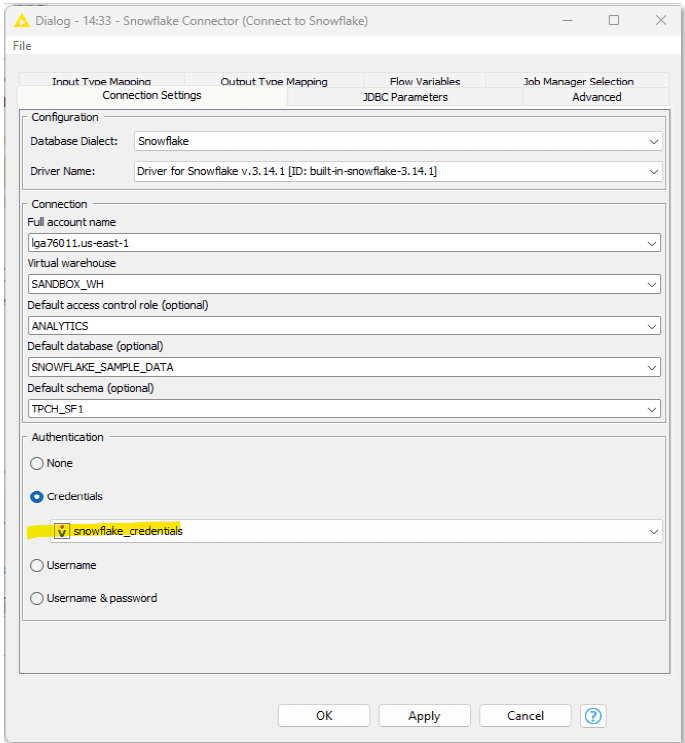
You may need to connect with your IT team to confirm the necessary connection details. The image below shows an example of the connection details for the Snowflake Connector.
Connecting KNIME to Databases with the Generic DB Connector
If an extension for a specific database is not available / the dedicated connector is unavailable, then you will need to use the generic DB Connector instead. We recommend following the steps below when using the generic DB Connector.
1. Register the database driver
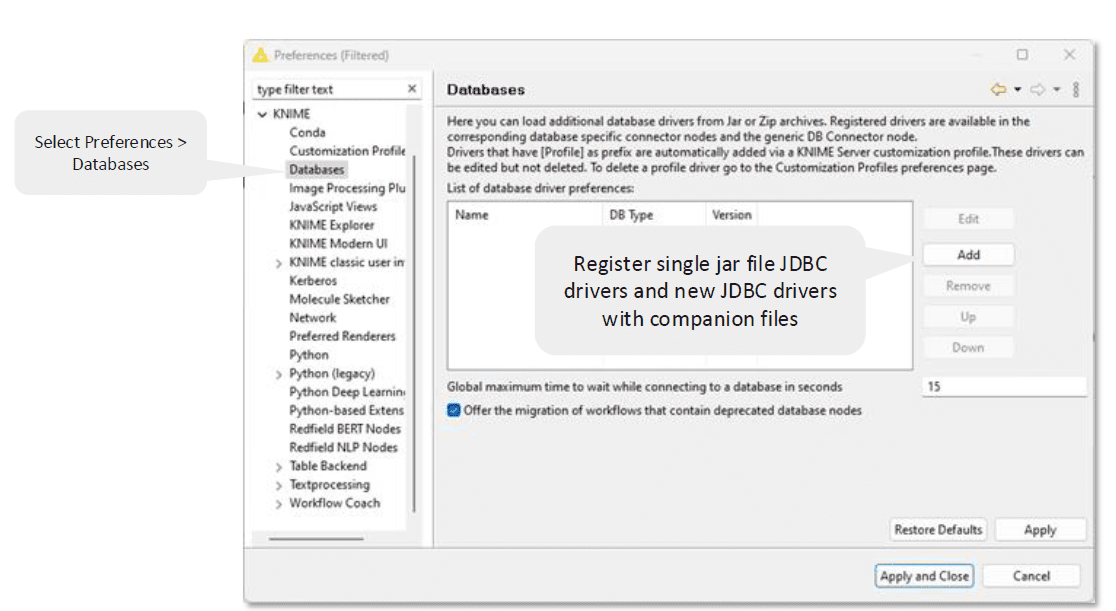
When a specific connector is not available in the repository, you have to manually register it.
Download a specific JDBC driver(
.jarfile) from the official website. Eg – IBM DB2Register the Driver
Open KNIME and select Preferences > KNIME > Databases
Add a new driver by clicking Add button to open the “New database driver” window
Fill all the details like ID, Name, Database type, Description
Click on the Add file and select the
.jarfile that was downloaded previouslyClick on Find driver classes, it will search for available drivers, and select the right one from the list
Confirm and apply
2. After the driver is registered, navigate to the workflow and use it in the DB connector node
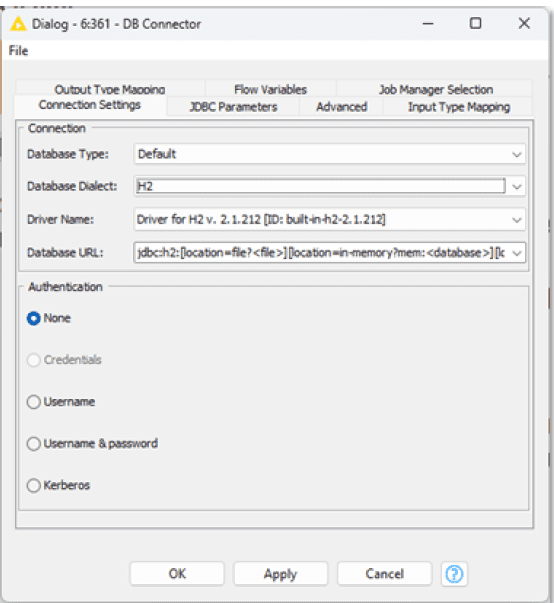
Add the DB Connector node to the canvas & open the configuration window
In the Driver name dropdown, select the driver that was created earlier
Fill the database URL, username & password
Security Best Practices for Database Access
Do not hardcode any username or password in the connector node’s configuration. This stores the credentials in the workflow file.
Rather, the Credentials Configuration node should be used.
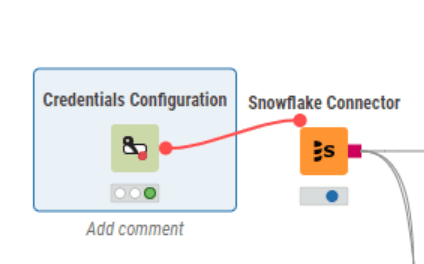
The credentials are entered in the credentials configuration node,
Red flow variable is produced with an encrypted credentials object. Connect this red port to your database connector node.
In the connector node, select credentials from the authentication section, and from the dropdown select the credentials flow variable.
This separates the logic and the credentials and enables the sharing of workflow with security. For automated jobs, KNIME Business Hub can inject these credentials into a secure vault.
Database Data Integration in KNIME
The color of a node output port tells you everything about where the processing is happening
Method 1: In-Memory / Local Processing (The "Black Port" Way)
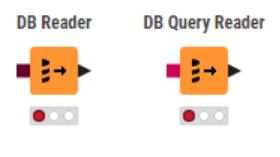
Nodes are DB Reader & DB Query Reader
These nodes have an output port, which is a black triangle. It is a regular KNIME data table represented by this port. When a DB Query Reader is run, it submits the full SQL query to the database and waits until the database has executed the query, then pulls the entire result set across the network into the local computer’s RAM (or temp disk cache).
Use it: When the dataset is small, it’s perfectly fine to pull the final aggregated result.
Don’t Use it: When the data is more than 10 million rows, filtering it and filtering again in the next node will consume a lot of system RAM, so this is the #1 performance killer.
Method 2: In-Database / Pushdown Processing (The "Dark Red Port" Way)
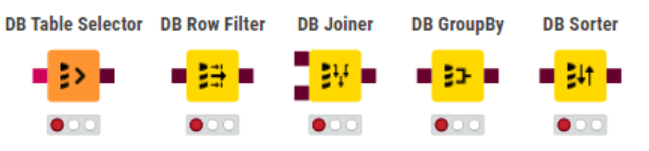
Nodes are DB Table Selector, DB Row Filter, DB Joiner, DB GroupBy, DB Sorter, etc.
These nodes have a dark red square port. This port is not filled with data. It stores the database connection details and the SQL query under construction. Once these nodes are linked, no data will be transferred, and no query will be made. The DB Table Selector will only add the query
SELECT * FROM my_tableto the query string. The DB Row Filter (linked to the DB Table Selector) will only add the queryWHERE country = 'INDIA'to the query string.When does it execute? When a black port node (such as DB Reader) or a writer node (such as DB Writer) is connected to the end of the chain and run, the entire complex SQL is only compiled and then sent to the database, which then only sends the end result back to the DB Reader, which is small.
This pushdown processing is what will enable performance optimization. The heavy lifting is left to the database server, which is what it’s intended to do.
| Attribute | In-Memory (Local) | In-Database (Pushdown) |
|---|---|---|
Example Nodes | DB Table Selector, DB Row Filter, DB Joiner | |
Port Color | Black Triangle | Dark Red Square |
Port Contains | Full Data Table (in KNIME Memory/Disk) | Database Connection + SQL Query String |
Where is Work Done? | KNIME (Your PC’s RAM/CPU) | Database Server |
Use Case | Pull small, final datasets for local analysis. | Build large, complex queries; filter/join/aggregate terabyte-scale data before pulling. |
Performance | Bottlenecked by network & local RAM. | Maximum. Leverages database power. |
Typical Database Operations in KNIME
KNIME does offer a complete range of database interaction nodes.
Running Custom SQL
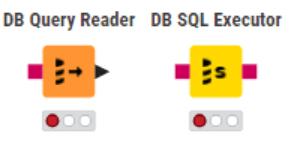
DB Query Reader: Executes a
SELECTstatement and gets the results directly into KNIME as a data tableDB SQL Executor: Runs any SQL that does not return a result set, such as
UPDATE,DELETE,CREATE TABLE, or executing stored procedures.
In-Database Filtering, Joining, and Aggregating (Visual)
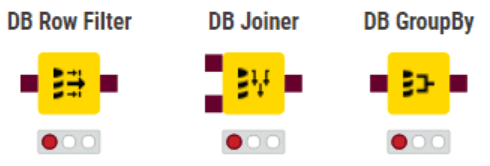
This is recommended while using a “dark red port” node to build a query. Use the DB Row Filter to build a WHERE clause, the DB Joiner to build a JOIN clause, and the DB GroupBy to build a GROUP BY clause.
Modifying and Writing Data Back to Databases
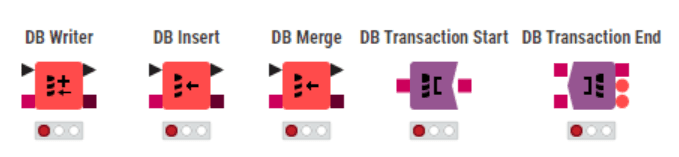
DB Writer: The most common writer. Can be used to “Drop” and create, “Overwrite” (truncate), or “Append” data.
DB Insert: A specialized node that only appends new rows to an existing table
DB Merge: Performs an
UPSERT(Update or Insert); it updates existing rows based on a key and inserts new rows that don’t match.DB Transaction Nodes: For complex write operations, wrap them in DB Transaction Start and DB Transaction End nodes to ensure all writes either succeed (
COMMIT) or fail (ROLLBACK) together.
Best Practices and Productivity Tips
-
Organize Workflows: Use Metanodes/Components to group related DB setups (e.g, Connector and Credentials nodes) and share any reusable components you create for database tasks. Add descriptive titles and annotations to make complex workflows easier to read.
-
Avoid bottlenecks: The most common bottleneck is users pulling unnecessary data into the system, so filter rows and columns as early as possible (in the database) to reduce data movement. Before pulling data, always ask, "Can I filter or aggregate this in the database first?"
-
Always Close Connections: The workflow must end with a DB Connection Closer node for every database connection opened. This prevents connection leaks that can cause the database server to crash.
-
Stay up to date: Make sure to use the latest version of the DB nodes and avoid the old, deprecated nodes.
-
Use the Transaction nodes: Use both DB Transaction Start and DB Transaction End nodes while writing data to ensure data consistency.
Conclusion
Database integration is one of the foundations of modern data analytics, and KNIME offers a powerful, easy-to-use way to integrate databases into your processes. KNIME enables users to leverage the power of SQL without compromising the flexibility of a visual environment, thanks to in-database processing nodes and built-in connectors. Best practices (working in the DB, using credentials safely, organizing workflows) will result in faster, scalable pipelines that can work with large datasets.

Ready to take your organization's analytics to the next level?
Connect KNIME to your data today. For personalized help on KNIME projects or training, contact us.
FAQs
Is KNIME suitable for big data environments?
Yes, this is a primary use case. KNIME Big Data Extensions come with first-class support of Apache Spark, Databricks, Hive, and Impala environments. The point is that KNIME moves the computations to the cluster. A Spark job is built using the visual workflow and orchestrated by KNIME to run on the cluster, reducing the costs of data movement and egress.
Can I connect to cloud-hosted databases?
Absolutely. KNIME can work with cloud databases (RDS, Azure SQL, Google Cloud SQL, and so on), provided they support standard SQL via JDBC. Special connector nodes are provided to most of them, and generic connectors address the rest. For cloud security, KNIME will use SSL connections and Kerberos when the driver and DB support them.
What database security features does KNIME support?
KNIME does not retain data beyond what users fetch, so database security relies on the DB server’s mechanisms. KNIME supports secure JDBC parameters (SSL, Kerberos). On the KNIME side, always use credential nodes to securely handle passwords.