
KNIME flow variables are parameters that control how a workflow executes, letting you pass values between nodes, override node configuration settings, and branch logic without touching a single node between runs.
Most KNIME users encounter flow variables when they want to stop manually reconfiguring the same node before every execution. File paths, filter values, date ranges, and loop iteration counts are all common candidates.
The Table Row to Variable node reads only the first row of its input table, a behavior that trips up engineers who expect it to convert an entire column; reading node descriptions before using variable-creating nodes in production prevents most flow variable errors.
phData engineers use flow variables heavily in Alteryx-to-KNIME migrations, where they replicate macro-equivalent branching and loop logic, and in several cases, flow variables simplified the migrated workflow enough to reduce its size and make it easier for less experienced KNIME users to maintain.
What are KNIME flow variables?
KNIME flow variables are parameters that control workflow execution by automatically overwriting node configuration settings between runs.
The types of these variables can be string, integer, double, arrays, or path values. These parameters can be used to avoid manually changing settings within the nodes of a workflow when a new execution with different settings is required. Flow variables are available only for the downstream nodes in the workflow.
They’re particularly helpful when you want to make a workflow more flexible, parameterized, or responsive to different scenarios without manually updating nodes every time.
Flow variables aren’t visible in the standard data stream; they are passed between nodes using the flow variable ports on each node:
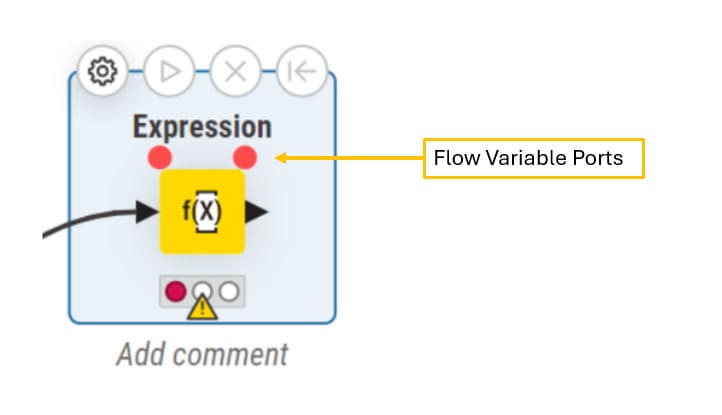
These variables can be created, modified, and consumed throughout the workflow.
You can use Flow variables to:
Applying the same filtering condition to multiple nodes, flow variables can propagate that.
Determining which branch to follow with a rule, when a workflow has branches, flow variables can be used as a Flow Control Guide and select the order in which nodes will be run.
For example:
Scenario
A company receives a table every month with the expenses of different departments. The table contains a column value that represents the amount spent per expense entry like the following:
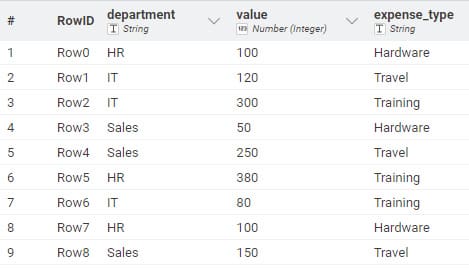
Management wants the workflow to:
Automatically detect if total monthly spending exceeds the approved budget of 500.
If
sum(value) > 500→ flag as “overestimated” and apply a more strict analysis:Identify which departments overspent
Apply penalties or alerts
Generate an escalation report
If
sum(value) ≤ 500→ follow a lighter branch:Basic reporting
No alerts
Standard dashboard update
At a certain point in the workflow, if the sum of the value column is greater than 500, we need to decide which branch to use. For that we can use flow variables in the following way: with a GroupBy node we calculate the sum of the value column and convert that sum into a variable, and then we use that variable in the CASE Switch Start node as the parameter that decides which branch should be executed.
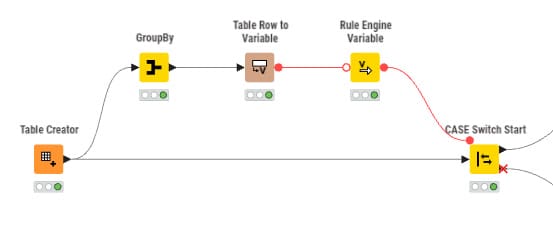
Processing different files with the same logic, flow variables can pass in file paths.
For example:
Every month, a company is manually converting .csv files into .knar files for a monthly analysis. We can automate that process using flow variables.
We use a String Configuration node to let the user enter the Path of the folder containing all the .csv files. That input is already a flow variable. We then convert it from a string to a path type variable with the next node, and afterwards we use the list of file names in a loop to convert them one by one, using each file name as a flow variable.
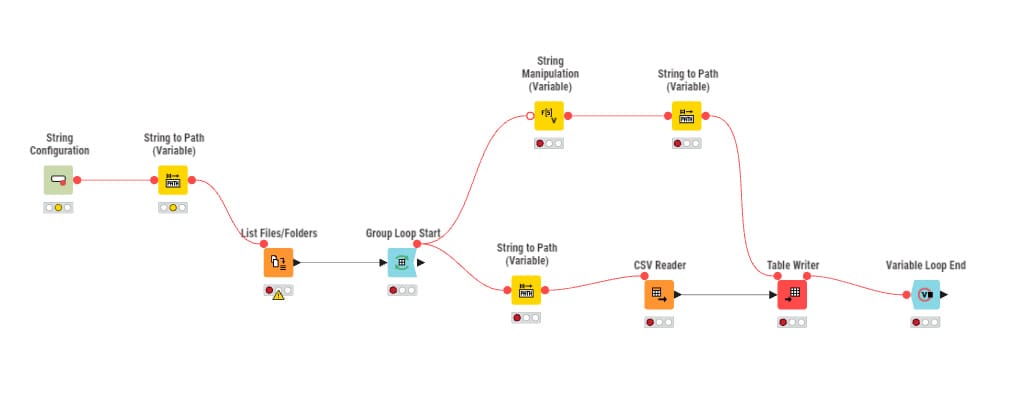
Creating an app that interacts with the user to configure the workflow, flow variables can overwrite node settings.
Setting the number of iterations in a loop dynamically.
Getting started with KNIME flow variables
Here is a video to have a brief introduction to Flow Variables and here is the documentation from KNIME.
To create Flow Variables you can use nodes like Variable Creator or Table Row to Variable, or you can also use the configuration nodes where the user can directly provide a Flow Variable to the workflow. These are common ways to create flow variables from your data, also you can configure the Flow Variables in a Tab in Node configuration: Almost every KNIME node has the option to configure a parameter to a flow variable. Next to each input field or dropdown, there is a small three-dot menu button or dedicated variable icon that opens the dynamic variable assignment menu. If the option is not there, you can right click the node and Configure flow variables option.

You can use the Expression node to inspect and manipulate them. You can also create expressions using common values and variables.
Note: KNIME is intended to be updated every 6 weeks, but please keep in mind the date of the last update and the date of this blog post.
Things to consider when using flow variables
Understanding the logic of the main variable nodes
It’s extremely important to understand the logic behind the nodes that convert table rows or columns into flow variables. For example, the Table Row to Variable node uses the value from only the first row of the selected column. If you expect it to convert an entire column into variables, you’ll need to use a different node or apply a transformation beforehand.
If you’re not clear on what a node actually does, it can easily lead to confusion and unnecessary complications. I recommend reading the node descriptions in the right-hand panel under Options, as they provide helpful details about each node’s behavior.
Filtering variables
It’s a good idea to filter your flow variables so you only pass what’s necessary. You can use nodes to limit which flow variables go into or out of components. This helps avoid confusion/unnecessary complexity inside components.
Downstream scope only
Flow variables propagate only downstream in the workflow. If you want to reuse a variable’s value in a later branch or part of the workflow, you need to make sure the flow variable is correctly routed.
Maintenance and scalability
Use clear naming conventions for your flow variables. Since they act like parameters, good naming helps future maintainers understand what each variable is for. You might start with just a few and think you’ll remember them, but if you want your workflow to scale, it’s better to be as explicit as possible, your future self will thank you.
Also, document where and how flow variables are used in your workflow so that other users (or again, future you) can easily understand the logic.
Security/sensitive data
Avoid embedding personal information or credentials inside the node configuration. Instead you can use Configuration/Widget nodes to pass credentials via flow variables and that way, sensitive information doesn’t live in nodes. KNIME Best Practices Guide.
Block until done
Something I’ve used a lot is that if you want a node not to start until another node has finished, you can use flow variables to control the execution order. Even if you don’t intend to pass any actual data as a variable, as long as a node is connected to another, it won’t start until the first one has finished processing.
How phData engineers use flow variables on client projects
Across client projects requiring automation and process improvement, flow variables were central to delivering reusable, production-ready workflows.
I also worked on several migrations from Alteryx to KNIME, and I found myself relying heavily on flow variables to replicate the exact same functionality as in the original Alteryx workflows.
Flow variables handled branch control, execution order, output file creation, and dynamic path management. They also helped convert Alteryx macros into KNIME loops, and in several cases, using flow variables didn’t just replicate the original logic but simplified it, producing smaller workflows that were easier for less experienced KNIME users to maintain.
Key takeaways
Flow variables cover the gap between a static workflow and one that responds to conditions, inputs, and environments.
Whether you’re controlling execution order, passing parameters, creating dynamic file paths, or designing reusable components, flow variables give you a level of control that static workflows can’t.
Start with one: pick a node configuration you change manually before each run and replace it with a flow variable. That’s usually enough to show the pattern clearly.

Ready to take the next step?
phData’s team works with KNIME across data engineering, automation, and Alteryx migrations. Contact phData to talk about your workflows.
FAQs
What are KNIME flow variables?
KNIME flow variables are parameters with string, integer, double, array, or path values that travel between nodes through dedicated flow variable ports. They control workflow execution and node configuration dynamically, so you don’t have to manually reconfigure nodes between runs.
How do I create a flow variable in KNIME?
You can create flow variables using the Variable Creator node, the Table Row to Variable node, or any Configuration or Widget node. You can also export an existing node configuration setting as a variable from its configuration dialog by clicking the flow variable icon next to the field.
What is the difference between a flow variable and regular data in KNIME?
Regular data travels through the main (black) connections between nodes as tables, images, or other data types. Flow variables travel through separate flow variable ports (red connections) and store parameter values used to configure node behavior, not rows of data.
How do I control execution order in KNIME using flow variables?
Connect nodes with a flow variable port (red edge) to force a downstream node to wait until the upstream node finishes, even when no data passes between them. This is useful for sequencing file writes, cleanup steps, or logging operations.
What are KNIME flow variable best practices?
Use clear, descriptive naming conventions so variables are self-documenting. Filter variables before they enter components to reduce complexity. Avoid embedding credentials in node configurations—pass them via Configuration nodes as flow variables instead. Read the node description for any variable node before using it in production, especially Table Row to Variable, which reads only the first row.