
Alteryx Server is a powerful, scalable platform designed for data analytics and process automation. It allows users to share, analyze, and process large volumes of data, ultimately helping organizations make data-driven decisions. By providing a centralized hub, Alteryx Server facilitates seamless collaboration, scheduling, and workflow execution, which enhances productivity and operational efficiency.
Integrating external data sources such as Active Directory with Alteryx makes managing the environment much easier, with automated tasks such as adding/removing users, setting roles, creating collections, etc.
In this blog, we will go through the process of setting up the necessary tools for querying Active Directory from PowerShell, how to build a query to get user information, and finally how to integrate the code to run it from within Alteryx Designer.
Installing RSAT-AD Tools
In order to query Active Directory (AD) using PowerShell scripts, you will need to install the Remote Server Administration Tools (RSAT), which include the Active Directory module for PowerShell. RSAT allows administrators to manage and query AD directly from their local machine.
First, make sure the feature is available. Run the code below in PowerShell:
Get-WindowsFeature -Name RSAT-AD*
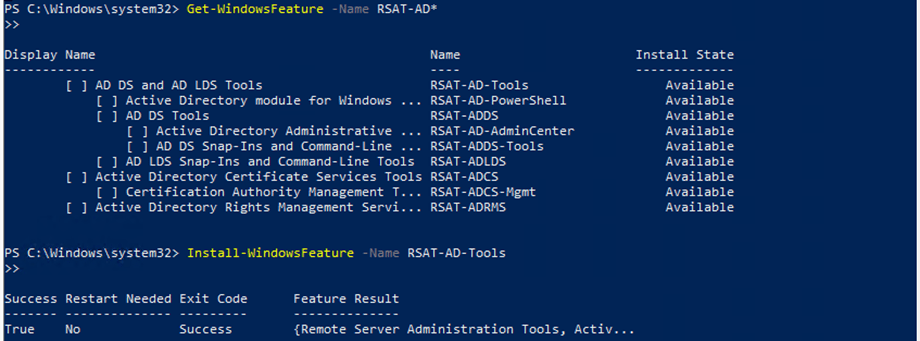
Install the feature:
Install-WindowsFeature -Name RSAT-AD-Tools
Note: RSAT tools are only available in Windows Pro, Enterprise, or Education editions. If you’re using Home Edition, RSAT cannot be installed. The installation command for Windows Desktop is different from that for Windows Server. For Windows Server, the RSAT tools are already included in the operating system; no extra download is required.
Run this command to confirm your OS version:
systeminfo | findstr /B /C:"OS Name" /C:"OS Version"
Querying Active Directory with PowerShell
Now that you have RSAT-AD tools installed, you can use PowerShell scripts to query Active Directory and extract valuable data. Below are examples of how to perform different types of queries:
Example 1: Search by Email
You can search for a user by their email address using the Get-ADUser cmdlet.
					$email = "example@example.com"
$user = Get-ADUser -Filter {Mail -eq $email} -Properties Mail, DisplayName
This command fetches the user whose email matches the given address, along with their email and display name properties.
Example 2: Get All Users from Physical Delivery Office 'LATAM'
To get all users located in the LATAM office, you can use the Get-ADUser cmdlet with a filter.
					$office = "LATAM"
$users = Get-ADUser -Filter {PhysicalDeliveryOfficeName -eq $office} -Properties DisplayName, PhysicalDeliveryOfficeName
This command retrieves a list of users whose PhysicalDeliveryOfficeName is set to LATAM, including their display names and office location properties.
The property’s names can vary for your AD instance. To check all available properties, you can run the following command:
					$email = "example@example.com"
$user = Get-ADUser -Filter {Mail -eq $email} -Properties *
Integrating Active Directory Data with Alteryx Workflow
Once you have obtained the necessary Active Directory data using PowerShell, you can integrate this data into Alteryx workflows for further processing and analysis.
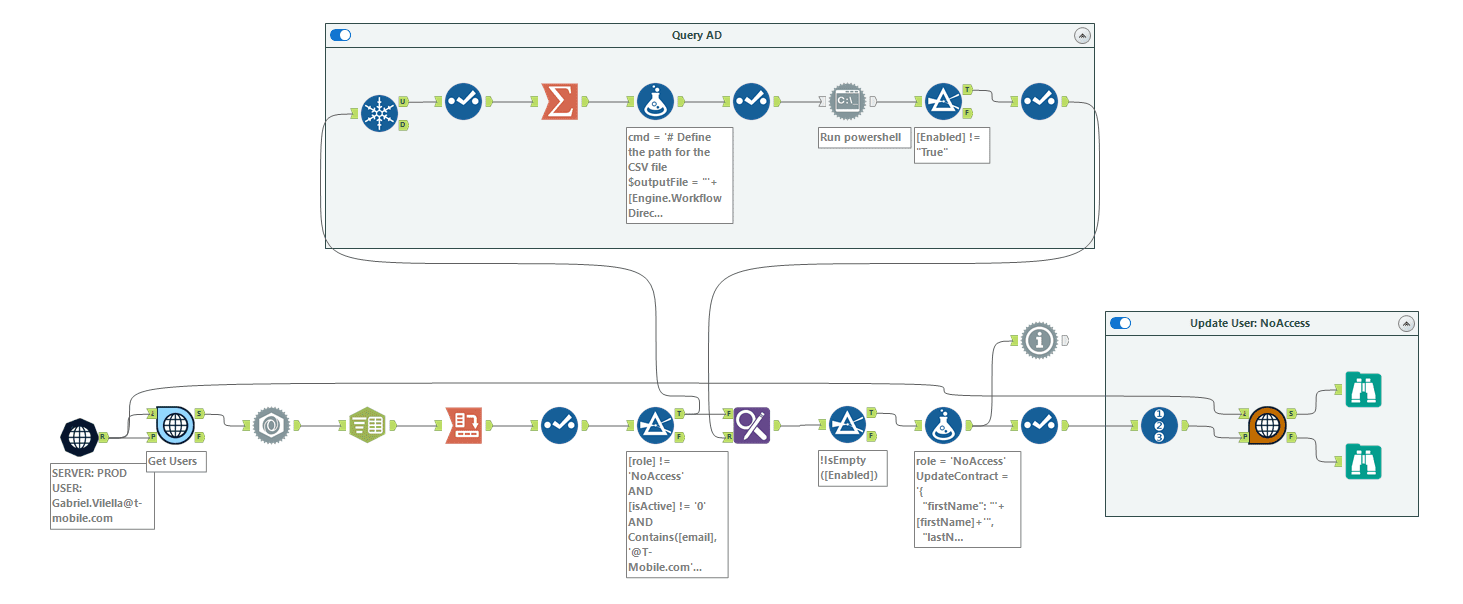
The catch here is to save the PowerShell Output to CSV so the Run Command tool in Designer can read the data. Use the Workflow Directory path so the workflow can be run from the Alteryx Server.
Export-Csv -Path "{WorkflowDirectory}\ADUsers_LATAM.csv" -NoTypeInformation
Here is the full code to be inserted into the workflow. It will read a list of user emails from the input. Change the property names accordingly.
					# Define the path for the CSV file
$outputFile = "'+[Engine.WorkflowDirectory]+'Userlist.csv"

# Delete the CSV file if it already exists
if (Test-Path $outputFile) {
	Remove-Item $outputFile -Force
}

# Define a long string of email addresses, separated by commas
$emails = "'+[Concat_email]+'"

# Split the string into an array of individual email addresses
$emailsArray = $emails -split ","

# Process each email in the array
$emailsArray | ForEach-Object {
	$user = Get-ADUser -Filter {mail -eq $_} -Properties Department,SamAccountName,GivenName,Surname,mail,LastLogonDate,Enabled,MemberOf -ErrorAction SilentlyContinue
	if ($user) {
    	# Extract CN values from MemberOf
    	$cnValues = @()
    	if ($user.MemberOf) {
        	$user.MemberOf | ForEach-Object {
            	if ($_ -match "^CN=([^,]+),") {
                	$cnValues += $Matches[1]
            	}
        	}
    	}

    	# User found, export their details
    	[PSCustomObject]@{
        	Department = $user.Department
        	SamAccountName	= $user.SamAccountName
            	GivenName     	= "Not Found"
        	Surname       	= $user.Surname
        	mail          	= $user.mail
        	LastLogonDate 	= $user.LastLogonDate
        	Enabled       	= $user.Enabled
        	MemberOf      	= $cnValues -join "; "  # Concatenate extracted CN values
    	} | Export-CSV -Path $outputFile -NoTypeInformation -Append
	}
	else {
    	# User not found, log their email with a "Not Found" message
    	[PSCustomObject]@{
        	Department = "Not Found"
        	SamAccountName	= "Not Found"
            	GivenName     	= "Not Found"
        	Surname       	= "Not Found"
        	mail          	= $_
        	LastLogonDate 	= "Not Found"
        	Enabled       	= "Not Found"
        	MemberOf      	= "Not Found"
    	} | Export-CSV -Path $outputFile -NoTypeInformation -Append
	}
}

Write-Host "Process complete. Results saved to $outputFile."
You can then leverage the Alteryx Server API endpoints to get and apply information back to the Alteryx Server. A useful endpoint is the one that updates the user role. If a user has their account set to disabled in Active Directory, this can be used to update the role in Alteryx Server to No Access.
PUT {baseURL}/v3/users/{userId}
Example payload for updateContract:
					{
  "id": "string",
  "firstName": "string",
  "lastName": "string",
  "email": "string",
  "role": "NoAccess",
  "defaultWorkerTag": "string",
  "canScheduleJobs": true,
  "canPrioritizeJobs": true,
  "canAssignJobs": true,
  "canCreateCollections": true,
  "isApiEnabled": true,
  "defaultCredentialId": "string",
  "isAccountLocked": false,
  "isActive": true,
  "isValidated": true,
  "timeZone": "string",
  "language": "string"
}
Fill in the information on the contract based on data from a previous API to get user data information. See more information about the endpoints on the documentation page.
Final workflow:
Closing
By using PowerShell scripts in conjunction with Alteryx Server, administrators can streamline server and user management tasks, including user creation, access control, and group management. These tools provide an efficient way to automate and manage essential administrative tasks, ultimately saving time and reducing manual errors.
Whether you are handling user creation, setting access permissions, or organizing users into collections, combining PowerShell with Alteryx Server creates a cohesive and efficient management ecosystem. By automating these processes, administrators can focus on strategic initiatives rather than routine tasks, leading to enhanced productivity and operational efficiency.

Ready to save time on Alteryx Server?
We at phData have numerous workflows already created and ready to be deployed to your Alteryx Server instance. Contact us now to start automating your Alteryx Server management tasks with ease!


